

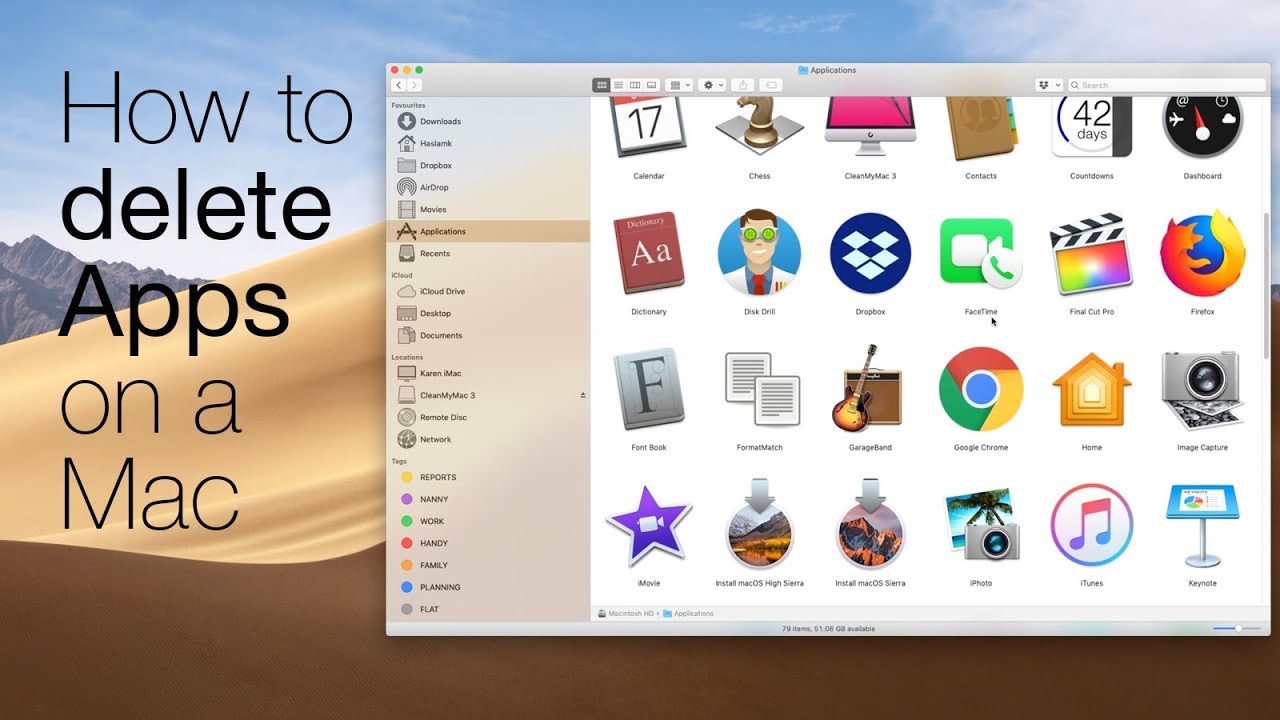
Comprehensive Guide to Uninstalling Apps on a Mac
Removing applications from your Mac is a straightforward process in most cases. Unlike Windows, macOS doesn’t include a built-in “uninstall” option, but that doesn’t mean it’s difficult. Whether you’re looking to free up space, resolve compatibility issues, or tidy up your system, learning how to uninstall apps effectively will enhance your Mac’s performance.

Why Remove Apps from Your Mac?
Over time, installed applications can clutter your system, take up valuable disk space, and slow down performance. Additionally, some new software versions may not function properly unless older versions are removed. Just like decluttering your home or workspace, clearing unused apps improves efficiency and keeps your Mac running smoothly.
How to Uninstall Apps on macOS
Simple Method: Drag and Drop
- Exit the Application: Close the app you wish to remove.
- Open the Applications Folder: Locate this folder in the Finder (blue smiley face icon) or by clicking on your hard disk icon.
- Drag the App to the Trash: Move the app’s icon from the Applications folder to the Trash.
- Empty the Trash: To permanently remove the app and free up disk space, right-click the Trash icon and select “Empty Trash.”
This method works well for most bundled apps, where all necessary files are contained in one location.
Uninstalling Apps from the Mac App Store
Apps downloaded from the Mac App Store are even easier to uninstall:
- Locate the App: Open the Applications folder.
- Drag to Trash: Delete the app from the folder, as well as any associated files in User/Library/Containers.
Removing Apps with Additional Files
Some programs create extra files in multiple locations, such as System Folders or Library directories. To fully remove these apps:
- Search for an Uninstaller: Many apps come with their own uninstall utility, either bundled in the installation disk image or available in the app’s folder. Use this tool if available.
- Manually Remove Leftover Files:
- Check your Library folder for associated files, often named after the app or its developer (e.g., Microsoft or Adobe).
- Use Spotlight Search to locate additional files.
- Drag unwanted files to the Trash and empty it.
Be Aware of Orphan Files
Some files, like preferences or support files, may remain after an app is removed. While small preference files are often negligible, larger support files—especially from multimedia programs like GarageBand—can consume significant space. These files are typically stored in Library/Application Support or Library/Preferences.
Tips for Deleting Apps on macOS
- Use Third-Party Uninstallers: Apps like AppCleaner, AppZapper, and AppTrap automate the process of locating and removing orphan files. Many of these utilities are free and highly efficient.
- Avoid Deleting Invisible Files: Some hidden files are critical to the macOS system. Deleting these can cause serious issues. Use uninstall utilities to manage such files safely.
- Empty the Trash Regularly: Moving apps to the Trash doesn’t free up space until you empty it.
Seven More Helpful Tips for App Removal
- Document Uninstall Instructions: When installing a program, note whether it includes an uninstaller or specific instructions for removal.
- Check Your Trash Before Uninstalling: Ensure your Trash contains nothing you want to keep before starting the uninstall process.
- Use Administrator Privileges: Log in as an admin to remove apps. If you’re at work, consult your IT department if you lack access.
- Evaluate Uninstaller Features: Paid third-party uninstallers often come with extra features, but free ones like AppCleaner may be sufficient.
- Leave Preference Files Intact: If you plan to reinstall the app, keeping preference files can save you time in the future.
- Be Cautious with Shared Files: Suites like Microsoft Office share files between components. Deleting one app’s files may disrupt others.
- Remove Dock Icons: If the app’s icon remains in your Dock after uninstalling, simply drag it off the Dock and release it.
Final Thoughts
Uninstalling apps on a Mac is typically quick and easy, requiring only a few steps. However, some applications may leave behind hidden or residual files, which can clutter your system over time. By following the tips above and leveraging third-party tools, you can keep your Mac clean, organized, and efficient. Taking the time to declutter your Mac not only frees up disk space but also ensures smoother operation for years to come.